
Category Archives: Technology
Relearning MSX #10: The KID (AKID) text editor (part 1)
Posted by Javi Lavandeira in MSX,Retro,Technology | January 11, 2015In the last few posts we saw how to install MSX-DOS2, MSX-DOS2 TOOLS and MSX-C v1.2. This is what we’ve done so far:
- Setting up the MSX-C environment, part 1: Emulator setup (openMSX)
- Setting up the MSX-C environment, part 2: Hard disk partitions and MSX-DOS2 install
- Setting up the MSX-C environment, part 3: Install MSX-DOS2 TOOLS
- Setting up the MSX-C environment, part 4: Install MSX-C v1.2
- Setting up the MSX-C environment, part 5: Install MSX-C Library
At this point we can already compile C programs, but the process is annoying and involves lots of typing. The next obvious step is prepare a script to do the work for us, and will require using a text editor. Since I’m assuming no previous experience, I’m going to explain the text editor included in MSX-DOS2 TOOLS, AKID (and its sibling KID) before we prepare our compile scripts.
You can skip this post if you’re already familiar with KID/AKID, or if you prefer to use a different text editor that you’re already familiar with.
What’s exactly a text editor?
Simply put, a text editor is a program to enter plain text in a computer and save it into a text file. Plain text consists just of normal characters: letters, numbers, punctuation marks, newlines, etc.
Do not confuse a text editor with a word processor. A word processor includes extra information in the files it generates. This information may be font names, colors, styles, file version numbers, maybe charts and images, etc.
Read more ›Relearning MSX #8: Setting up the MSX-C environment (part 4)
Posted by Javi Lavandeira in How-to,MSX,Retro,Technology | January 5, 2015(This is another looooong post. Be sure to click the “Read more” button if you’re previewing this post from the blog summary.)
By the end of the previous post we had MSX-DOS2 and MSX-DOS2 TOOLS installed on an MSX with a hard drive. So far everything is installed in drive A:, the first partition in the hard drive.
In this post we’ll proceed to install ASCII’s MSX-C v1.2. We’ll copy some utilities to the A: drive for convenience, but we will use the B: drive for all the compile environment.
Let’s get started.
MSX-C versions
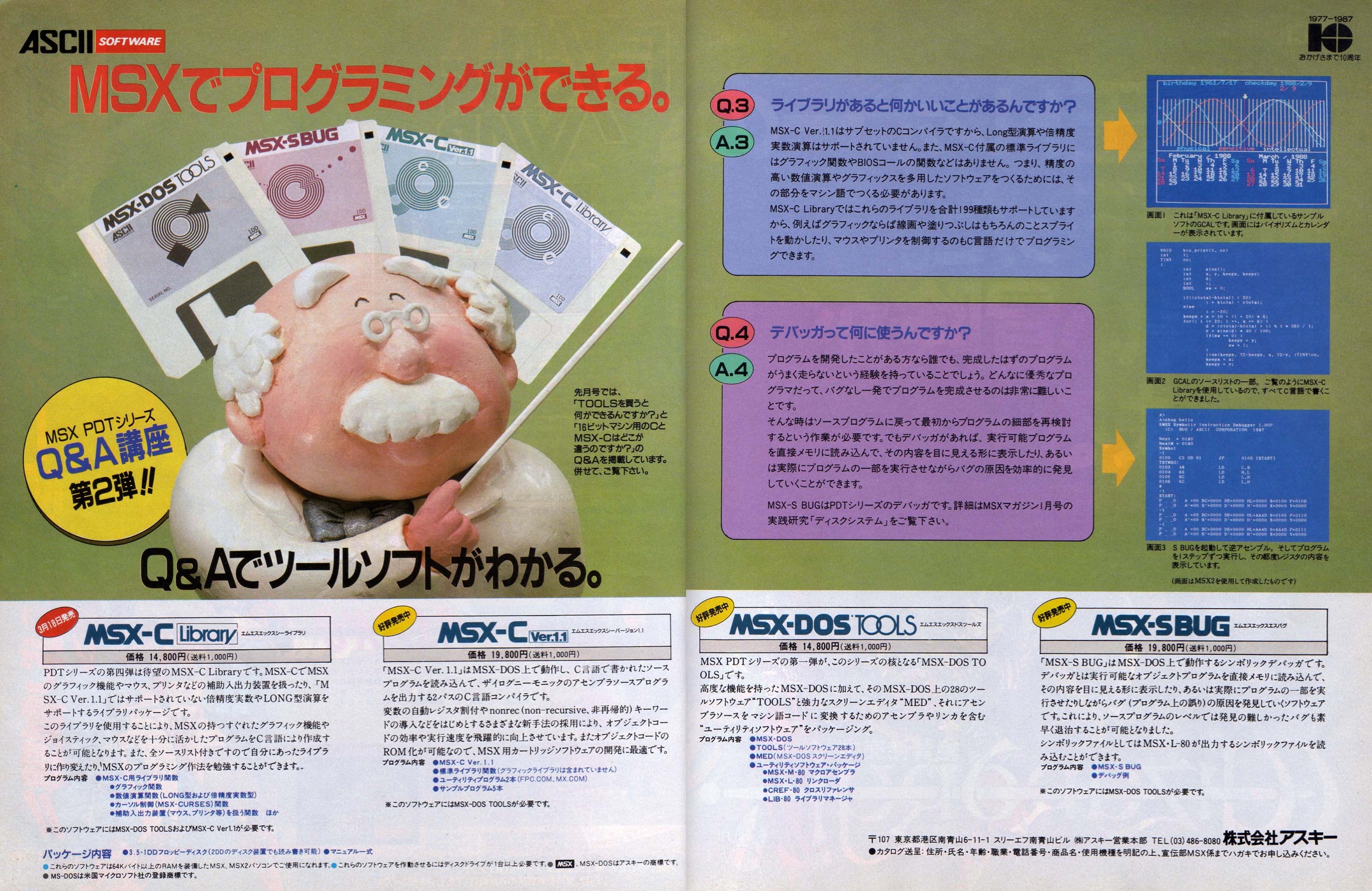
MSX-C v1.1 ad. MSX Magazine (April 1988). Click to enlarge.
ASCII released two versions of the MSX-C compiler:
- MSX-C v1.1: runs under either MSX-DOS or MSX-DOS2 and generates code that also works on either operating system, but doesn’t have support for MSX-DOS2 functionality
- MSX-C v1.2: runs on MSX-DOS2, and generates MSX-DOS2 applications, and has full MSX-DOS2 support
We will be using MSX-C v1.2.
Read more ›Relearning MSX #7: Setting up the MSX-C environment (part 3)
Posted by Javi Lavandeira in MSX,Retro,Technology | January 2, 2015At the end of the previous chapter we had a working MSX-DOS2 installation. Those of you using openMSX now have a setup like this:
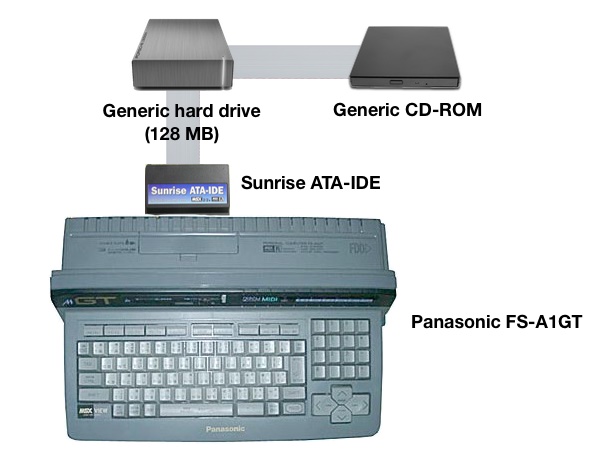
Current MSX setup under openMSX
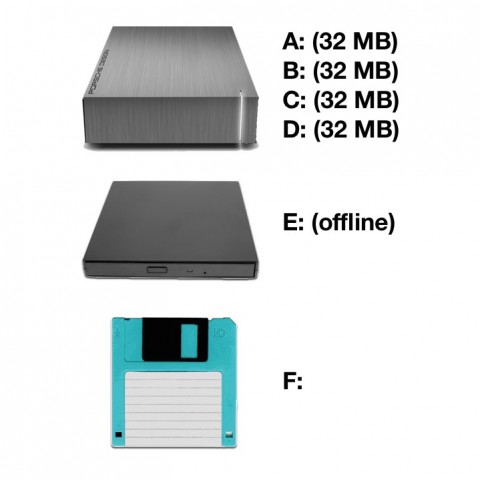
Disk drive names under openMSX
From this point on, the explanations in these series will work the same on an emulator and on a real MSX computer, unless I explicitly point out the differences. One of the things that you’ll have to pay attention to if you’re using your MSX are the drive letters. They may be different in your machine.
Let’s dive in.
Read more ›Relearning MSX #5: Setting up the MSX-C environment (part 1)
Posted by Javi Lavandeira in Gadgets,MSX,Retro,Technology | December 29, 2014This article has moved to MSX Center.
Relearning MSX #3 – User environments
Posted by Javi Lavandeira in Hardware,How-to,MSX,Retro,Technology | December 18, 2014This article has moved to MSX Center.
Relearning MSX #1 – Introduction
Posted by Javi Lavandeira in Fun,Hardware,How-to,MSX,Retro,Technology | December 11, 2014This article has moved to MSX Center.
Oculus Rift Development Kit 2: Review and initial impressions
Posted by Javi Lavandeira in Gadgets,Hardware,Technology,Virtual Reality | July 31, 2014
I received my Oculus Rift DK2 yesterday morning. I ordered it on March 19th, within hours from the announcement. Here are my first impressions.
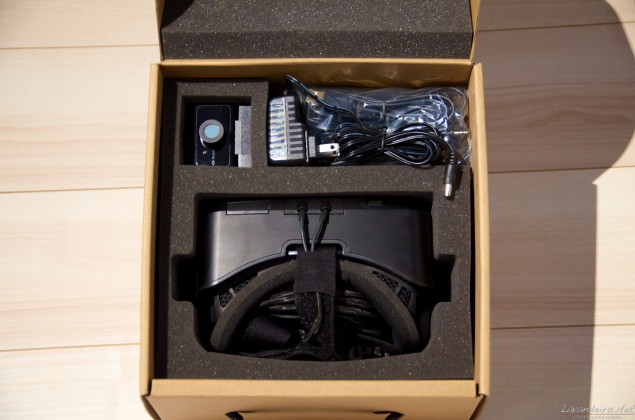
Click to read the whole review.
Read more ›Ben & Jerry’s awesome event in Tokyo Midtown, now with Oculus Rift!
Posted by Javi Lavandeira in Fun,Hardware,Technology,Virtual Reality,Work | March 15, 2014If you live in Tokyo get your ass off the couch and head for Tokyo Midtown now and get some delicious free ice-cream.
Ben & Jerry’s is celebrating an event in the basement of the Tokyo Midtown Galleria. Here you can enjoy free ice-cream, have your photo printed in a tub of the delicious thing, sit and relax while you eat under a (fake) tree…
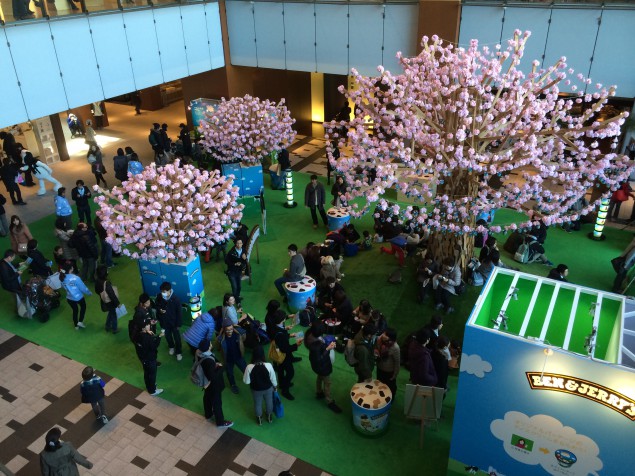
…and also become a happy cow in a virtual reality experience using the Oculus Rift:

So where and when is this happening? Here you go:
Tokyo Midtown Galleria B1F
Saturday, March 15th 11am-8pm
Sunday, March 16th 11am-7pm
The even was put together by our company, Wieden+Kennedy Tokyo. Keep reading for the fun details.
Read more ›